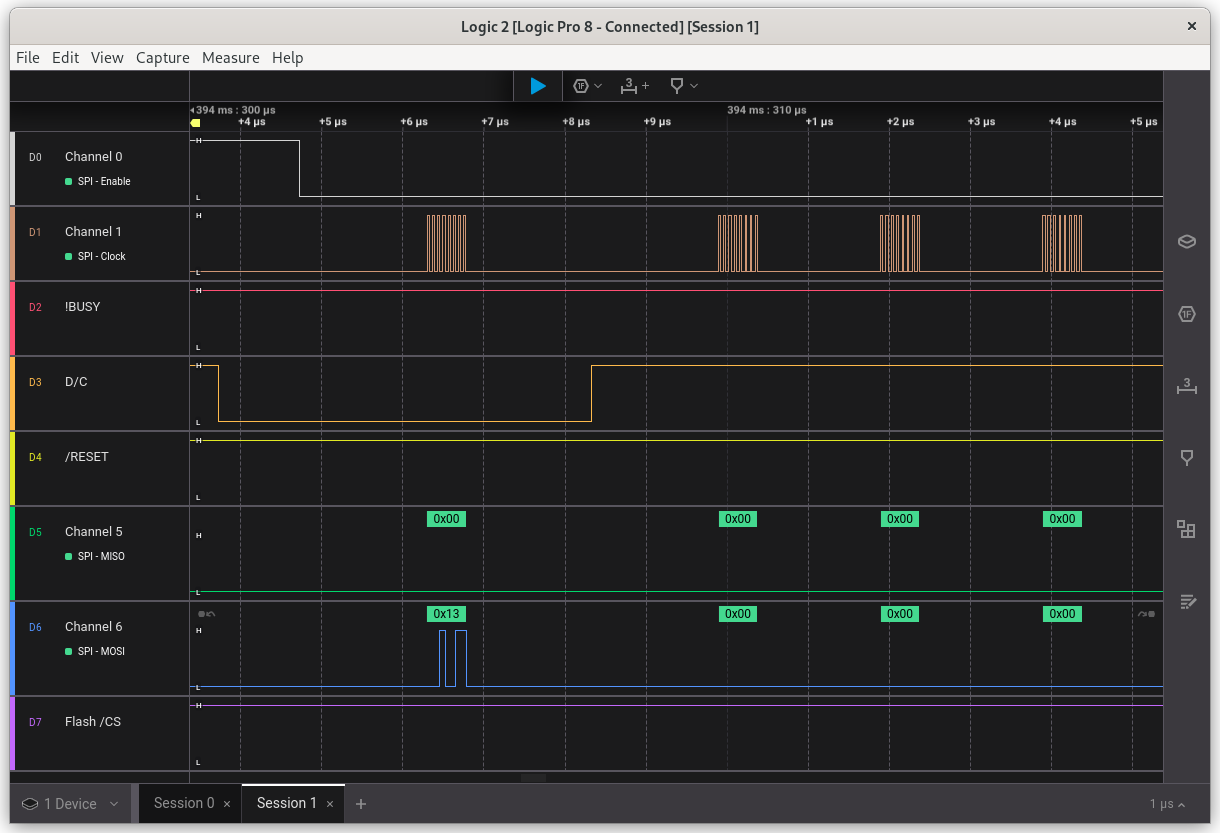
Debug the screen SPI signals
This technical note details how to debug the screen SPI signals with a logic analyser.
The options are especially useful to check all the signals are correct when Defining a non-listed board or Migrating to another SDK, and when creating a ticket .
The example uses the Saleae Logic Pro 8 with the application Logic 2 .
Configure
| Logic analyser Channel |
Extension board Pin |
Extension board Signal |
|---|---|---|
| 1 | 9 | Panel /CS |
| 2 | 2 | SPI SCK |
| 3 | 3 | Panel !BUSY |
| 4 | 4 | Panel D/C |
| 5 | 5 | Panel /RESET |
| 6 | 6 | SPI MISO |
| 7 | 7 | SPI MOSI |
| 8 | 8 | Flash /CS |
| Ground | 10 | Ground |
Set a trigger on channel 5 connected to Panel /RESET, with a 9~11 ms wide low pulse as pattern.
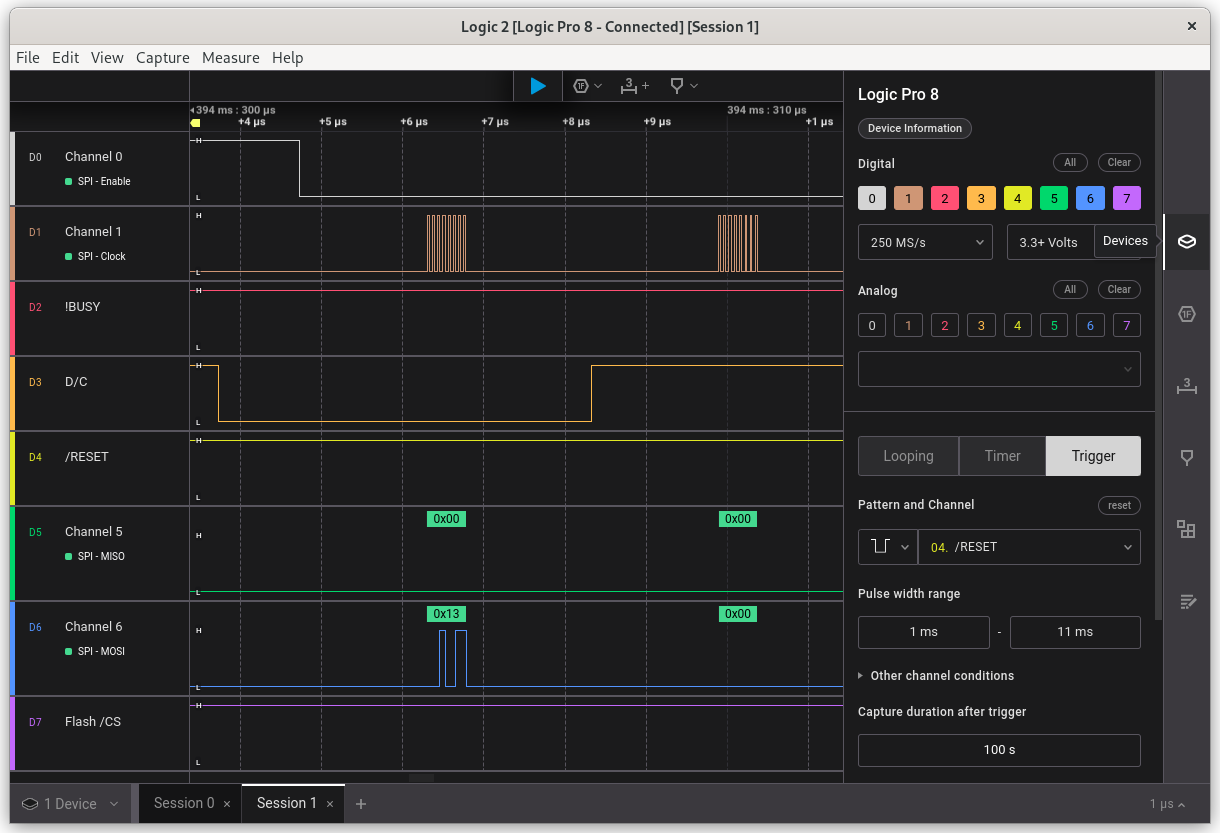
The panel reset signal is used as a trigger
Channel 8 is normally connected to signal Flash /CS.
For large screens, connect channel 8 to signal Panel /CSS.
| Logic analyser Channel |
EXT3 board Pin |
EXT3.1 board Pin |
EXT3 board Signal |
|---|---|---|---|
| 8 | 8 | Flash /CS | |
| 8 | 12 | 12 | Panel /CSS |
For the EXT4 board, connect channel 8 to signal Panel /POWER.
| Logic analyser Channel |
EXT4 board Pin |
EXT4 board Signal |
|---|---|---|
| 8 | Flash /CS | |
| 8 | 11 | Panel /POWER |
Use
On the Saleae application, press the Capture button.
Launch the device under test. The reset signal will trigger the recording of the signals.
Example